Application status: OPEN. The portal shows CEN No. 06/2026 (Non-Technical Popular Categories, Graduate) with an opening date of 8 October 2026 and a closing date of 6 November 2026.
Last checked: 14 October 2026
Hello friends,
Applying for the Railway Recruitment Board (RRB) NTPC Graduate positions under CEN No. 06/2026 requires careful attention to detail. Many candidates face issues like payment failures, photo rejection due to incorrect dimensions, or selecting the wrong post preferences during the live portal window from 8 October to 6 November 2026. In this comprehensive guide, we break down the entire online application workflow step-by-step to ensure your form is submitted successfully without any critical errors
In this guide, I’ll explain the RRB NTPC Graduate 2026 application process step by step, from creating an account to making the final submission. I’ve also included some practical reminders to help you avoid common mistakes.
This article only covers how to fill the form. Vacancies, age limit, fee, salary and eligibility are already explained in my separate article on this notification. [https://lcjp.in/rrb-ntpc-graduate-recruitment-2026/] Please read that first, check that you are eligible, and then come back here when you are ready to apply.
What to Keep Ready Before You Start
Please don’t open the form and start filling it in a hurry. Sit down for ten minutes first and collect everything you need. You need your 10th class certificate or mark sheet, because the portal asks for your name, date of birth, father’s name and mother’s name exactly as printed there. You also need your 12th and degree mark sheets, since the education section asks for details such as hall ticket numbers and marks.
If you plan to use Aadhaar verification, keep your Aadhaar details and access to the Aadhaar-linked mobile number ready for OTP verification. Keep a working email ID as well. Then keep a recent photograph and a scanned signature ready on your phone or computer. If you belong to a reserved category or have a disability, keep that certificate scanned too. Check the notification for the exact size and format limits of these files before you upload anything.
Step 1: Open the Official Website
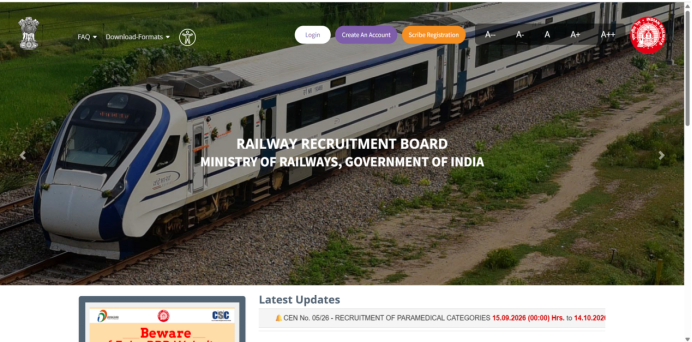
The application is done on the official RRB application portal, rrbapply.gov.in. When it opens, you will see a photo of a train with the heading (Railway Recruitment Board, Ministry of Railways, Government of India). At the top there are three buttons: Login, Create An Account, and Scribe Registration. Scribe Registration is for candidates who need a scribe. Most of you will only need the first two.
Please type the address yourself or open it from the link on a trusted site. Fake websites are common during big recruitments, and the portal itself carries a “Beware of fake RRB websites” notice on the home page.
Step 2: Create Your Account
If this is your first time, click “Create An Account”. If you already made an account in an earlier RRB recruitment, you don’t need a new one. Just click Login and use the same account.
The account form is the place where you must be most careful, because you are filling in your basic identity. Start with your nationality. Then you will see a section called Personal Information, with a red note that says everything must be “as recorded in Matriculation (10th class) Certificate/Mark Sheet”. Your full name, date of birth, gender, father’s name and mother’s name all have to match your 10th certificate letter by letter. The form makes you type each one twice. This is not a mistake. It is the portal’s way of making sure you haven’t made a typing error.
There is also a question asking whether you have changed your name. Answer it honestly. Don’t write a short name, a nickname or a spelling you like better. If your certificate says “Venkata Satya Narayana”, don’t write “V. S. Narayana”.
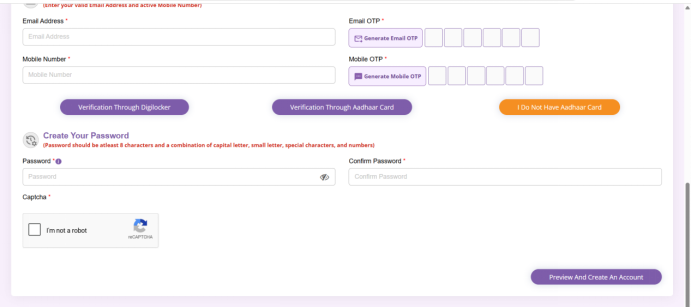
Scroll down and you reach the contact details. Enter an email address and a mobile number that you will actually use for the next few months, because all the updates and the exam call letter information will come there. Click “Generate Email OTP” and “Generate Mobile OTP”, and enter the six-digit codes you receive.
Below that, you will see three options for verification: through DigiLocker, through Aadhaar card, or “I Do Not Have Aadhaar Card”. Most candidates will use the Aadhaar option. Then create a password. The page says it should be at least 8 characters, with a capital letter, a small letter, a special character and a number. Choose something you can remember and write it down in a safe place. Finally, tick “I’m not a robot” and click “Preview And Create An Account”.
Now an important tip, and I’ll say it plainly. Fill this page slowly and check it twice. Check all your details carefully before creating your account. Some details may be difficult to change later, so it is better to enter everything correctly the first time.
Step 3: Log In with Your Aadhaar OTP
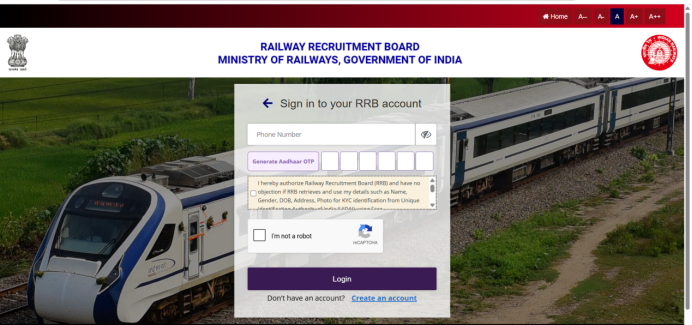
After the account is created, go back to the login page. The sign-in box says “Sign in to your RRB account” and asks for your phone number. Enter the mobile number that is linked to your Aadhaar and click “Generate Aadhaar OTP”. Within a few seconds you will get an SMS from the Aadhaar system. The OTP is valid for 10 minutes, so enter it promptly.
Before you press the Login button there are two small things people forget. There is a checkbox where you give permission for the RRB to fetch your details, such as name, gender, date of birth and photo, from the Aadhaar database. You must tick it. Then you have to tick the “I’m not a robot” box. If you miss either of them, the login will not go through.
If the OTP does not arrive, don’t keep clicking the button again and again. Wait a minute, check that the number is really linked to your Aadhaar, and try once more.
Step 4: The Dashboard and Choosing Your RRB
When login is successful, you land on the candidate dashboard. At the top there are four tabs: General Instructions, Online Application, Application History and Modify Registration Details. You will also see a green label saying “Account Verified With Aadhaar”, which means your verification is done.
Please spend a minute reading the general instructions on this page, because they tell you some real rules. The question papers for the CBT are available in 13 regional languages, including Telugu, besides Hindi and English. You must check the Preview form before final submission. The exam fee has to be paid before the closing time. And the final submission is complete only after the fee payment is confirmed, after which you get a confirmation by email and SMS. The page also warns that an application without the fee will be rejected and that no representation will be accepted against it. When you are ready, click “Online Application”.
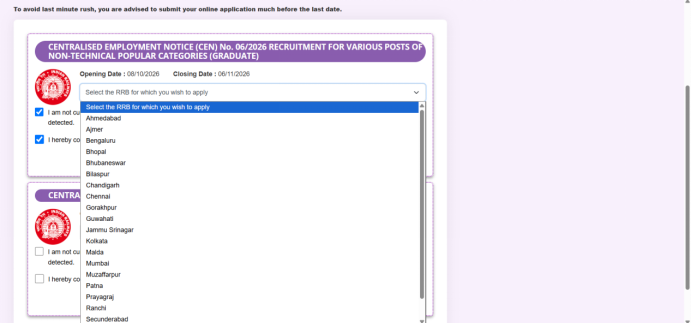
Now you will see more than one notification listed. When I checked, there were two, one for graduate posts and one for undergraduate posts. For this article, choose the Graduate notification, that is CEN No. 06/2026 for Non-Technical Popular Categories, which shows the opening date 08/10/2026 and the closing date 06/11/2026.
Under the notification there is a drop-down box that says “Select the RRB for which you wish to apply”. It lists the Railway Recruitment Boards such as Ahmedabad, Bengaluru, Bhopal, Bhubaneswar, Chennai, Kolkata, Mumbai, Patna, Ranchi and Secunderabad. Many candidates from Telangana and Andhra Pradesh look at Secunderabad, but please check the notification to see which RRB covers your area and where your own preference lies. Choosing the zone is a big decision, so don’t pick one casually. Then tick the two declaration boxes below it and click the button to move forward.
Step 5: Personal Details and Other Details
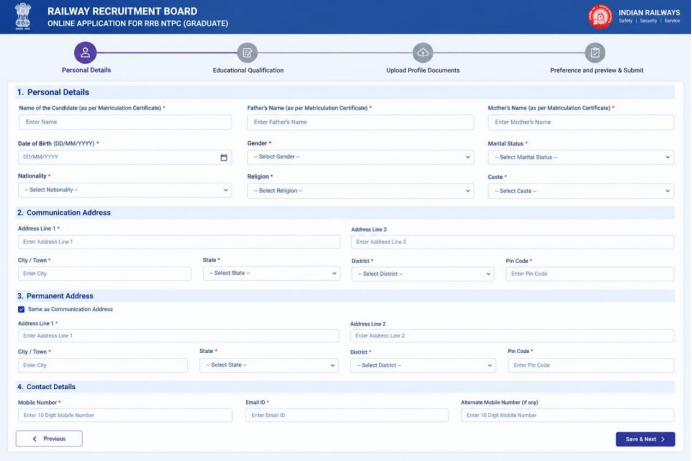
Now the main application form opens. The first section is for your personal details. You will see your name, father’s name, mother’s name, date of birth, gender, marital status, nationality, religion and caste. After that comes your communication address and your permanent address. If both addresses are the same, there is a checkbox, “Same as Communication Address”, which saves you time. Then come your contact details, with your mobile number, email ID and an alternate number if you have one.
Pick your category carefully. If you are applying under OBC, remember that the certificate has to be the right kind, which is the non-creamy layer one, and it should be valid for the notification. If you are not sure, read the category rules in the notification before choosing. Some candidates choose the wrong category and only find out at document verification.
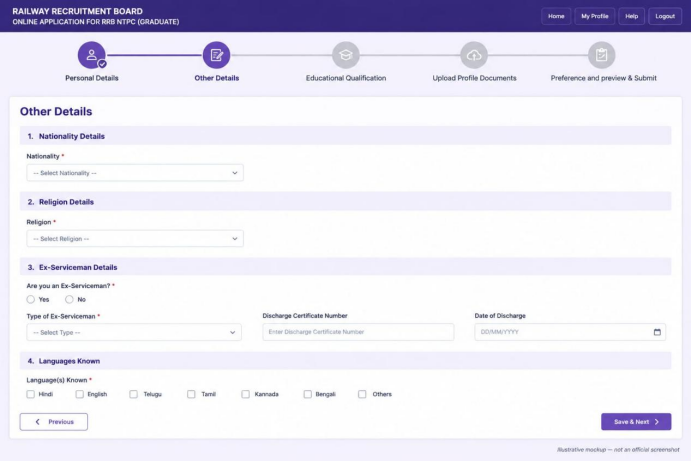
Next there are some additional details. You will be asked whether you are an ex-serviceman, and if you are, you must fill in the type of ex-serviceman, the discharge certificate number and the date of discharge. If not, just choose No. You will also be asked which languages you know. Tick the ones you really know, such as Telugu, Hindi or English.
From my own experience, I learned that it’s better to arrange your category certificates well before the application deadline. I belong to the OBC category, and at first, I thought my regular BC certificate would be enough. But when I found out that I needed the prescribed OBC-NCL certificate, there were only a few days left. I was told it could take around 7–10 days to get it, so I ended up applying under the General category and later paid an extra fee to make changes during the correction window.
So, if you’re applying under OBC-NCL or EWS, don’t wait until the last minute. Check the certificate requirements in the official notification and arrange your documents early. A regular BC certificate or an income certificate alone may not be enough, so make sure you have the correct documents before submitting your application.
When the page is complete, click “Save & Next”. A small point here is that the portal moves you forward section by section, so you can’t skip a page.
Step 6: Education Details and the Hall Ticket Number
This is the page where I want you to slow down the most. You will enter your qualifications, starting from the 10th class and going up to your degree. For each one you give the details such as the board or university, the year of passing and the marks or percentage, and for some of them the hall ticket or roll number.
Here is a real story from one of my friends. He cleared all the exams, he even cleared the medical test, but at document verification the board found that the hall ticket number he had entered in the form did not match his certificate. His candidature was rejected. A single wrong digit cost him a government job. So when you reach this section, take your mark sheet in your hand, type the number, and then look at it again. Then ask someone at home to check it a third time if you can. It takes two minutes and it can save you months of effort.
Please also remember that your eligibility is only provisional when you apply. The real check happens later, when the railway board compares your form with your original documents. Whatever you type here, you must be able to prove with a certificate.
Percentages should be entered the way your marks memo shows them. If you have a CGPA, follow the instructions on the page and don’t guess a conversion in your head. When everything is correct, click “Save & Next”.
Step 7: Upload Your Photo and Signature
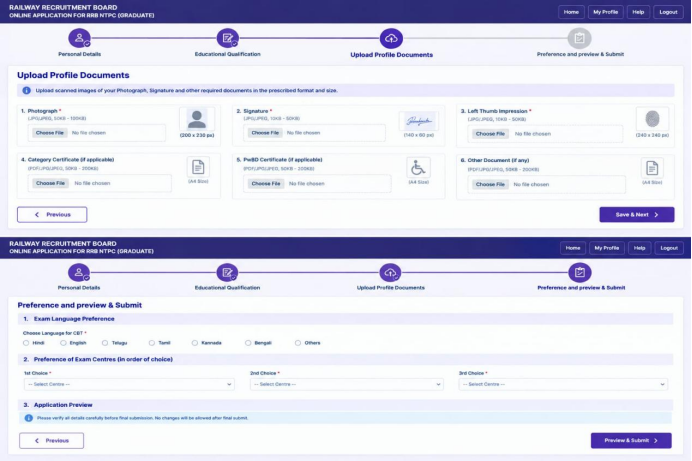
The next page asks you to upload your photograph, your signature and your left thumb impression. There are also optional boxes for a category certificate, a disability certificate and any other document. The exact file formats and sizes are given in the official notification, so please read them before you start. Scan or photograph the documents in advance and check the size, because the portal will not accept a file that is too large or too small.
My most important advice here is about the signature. Sign in the same way that you will sign on the day of the exam. This is a small thing, but it matters. If the signature in your form looks very different from the one you write in the exam hall or at verification, you can be asked questions about it. Use a plain white paper and a dark pen, sign clearly, and don’t use block letters or write your name in a fancy style that you can’t repeat.
Choose a photograph that clearly shows your face, with a plain background and no cap or dark glasses. Then upload each file one by one and look at the small preview box to make sure the right image is showing. Click “Save & Next” when you are done.
Step 8: Preferences, Preview and Final Submit
The last section is for your preferences. First you choose the language in which you want to write the computer-based test. If you are comfortable reading Telugu, you can choose Telugu as your exam language if it is available. Then you select your exam center preferences in order, with a first choice, a second choice and a third choice. Think about which cities are easiest for you to reach, and where you can stay if you need to travel.
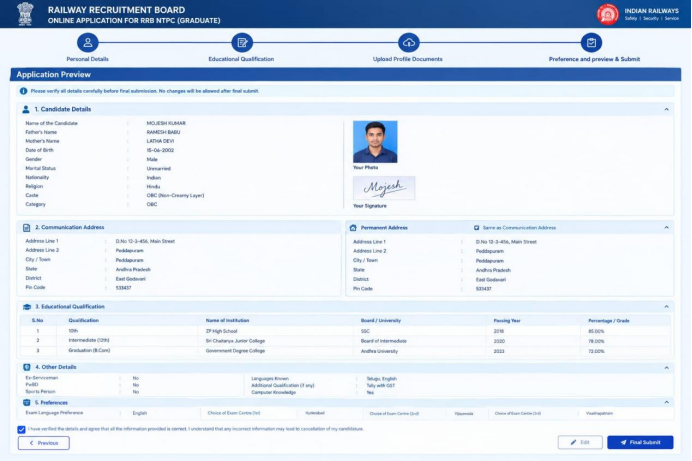
After that, click “Preview & Submit”. This page shows your whole application in one place, including your photo and signature, your address, your education details, your other details and your preferences. A line at the top reminds you that no changes will be allowed after the final submit, and it is true. Go through the page from top to bottom slowly. Check the spelling of your name, your date of birth, your category, every hall ticket number and your phone number. Read your signature and photo too. If anything is wrong, use the Previous or Edit button and fix it now.
When everything is correct, tick the box saying that you have verified the details, and click “Final Submit”. Then complete the fee payment as the portal instructs. As the dashboard instructions say, your application is only complete after the fee payment is confirmed, and you should receive a confirmation by email and SMS. Don’t close the page in the middle of the payment. Save a copy of the final application and the payment receipt, because you may need them later.
My Tips for a Clean Application
First, don’t wait for the last date. The portal can slow down badly near the closing time, and the instructions on the page themselves warn you not to leave it for the last minute. The closing date is 6 November 2026, so start now. Second, use only one account and one application. Third, keep the same mobile number and email ID that you used while creating the account, and keep checking both of them regularly after you apply.
Fourth, never pay anyone for a “guaranteed selection”. Railway recruitment is on merit and the application itself needs no agent. If someone is asking you for money, walk away. Fifth, take a screenshot or a print of every page when you finish. If a problem appears later, you will be glad you have it.
Common Mistakes to Avoid
The most common mistake is a mismatch between the form and the certificate, whether it is a name spelling, a date of birth or a hall ticket number. The second is a signature that does not look like your real signature. The third is choosing the wrong category and then not having the proper certificate. The fourth is entering an email or a phone number that you don’t use. The fifth is leaving the fee payment unfinished and assuming the application is done. If you avoid these five things, you will already be ahead of many other candidates.
Conclusion
Filling the RRB NTPC Graduate form is not difficult, but it needs patience. Create your account carefully, log in with your Aadhaar OTP, choose the right notification and RRB, fill each section slowly, upload clear files, and spend extra time on the preview page before final submit. Then pay the fee and keep your confirmation safe.
I hope this step-by-step guide makes the process easier for you. Read the full details of this recruitment in my notification article [LINK], and if you have any doubt, ask in the comments. Good luck, friends!
Disclaimer: This article is for information only. Dates, rules and portal screens can change, so always follow the official RRB notification and website. LCJP Job Hub is an independent website, is not affiliated with the Railway Recruitment Boards, and does not guarantee selection.
IMPORTANT LINKS
RRB NTPC Graduate Recruitment 2026: Notification, 3,548 Vacancies, Eligibility & Apply Online